Laptop Battery Stuck at Certain Percentage
Published: 27 Mar 2026
If your Laptop Battery Stuck at Certain Percentage issue is driving you crazy, you’re not alone. Many users report their battery freezing at 0%, 50%, 60%, or even 99% while charging. This problem can affect productivity, battery life, and overall laptop performance.
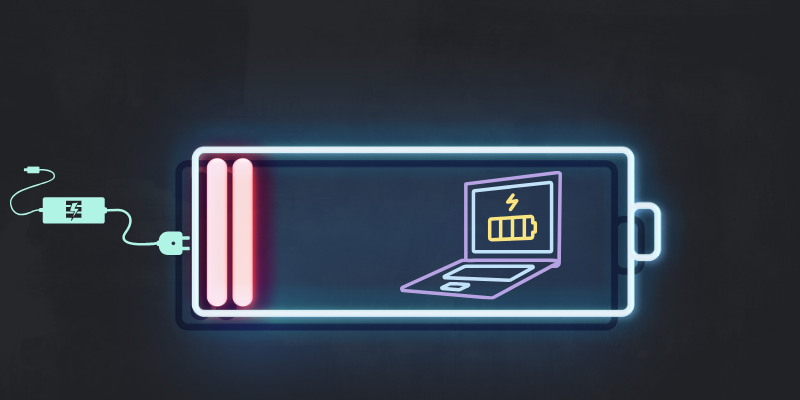
In this complete guide, you’ll learn why your laptop battery is stuck, how to fix it step-by-step, and how to prevent it from happening again. Whether you’re using Windows 10 or Windows 11, these solutions are proven to work.
🔋 Why Is My Laptop Battery Stuck at a Certain Percentage?
When your Laptop Battery Stuck at Certain Percentage, it usually means something is interfering with the charging process. Here are the most common causes:
1. Battery Calibration Issues
Your laptop may not be accurately reading battery levels. This causes it to stop charging at a certain percentage even when it shouldn’t.
2. Faulty Power Adapter or Charger
A damaged or incompatible charger can prevent the battery from charging fully.
3. Outdated or Corrupted Battery Drivers
Battery drivers help Windows communicate with your hardware. If they’re outdated, your battery may get stuck.
4. Battery Health Degradation
Over time, lithium-ion batteries lose capacity, which can cause charging limits.
5. BIOS or Firmware Problems
Outdated BIOS settings can interfere with battery charging behavior.
6. Manufacturer Charging Limits
Some laptops (like Dell, HP, Lenovo) intentionally stop charging at 60% or 80% to preserve battery health.
⚡ Quick Fixes for Laptop Battery Stuck at Certain Percentage
Try these quick solutions before moving to advanced fixes:
- Restart your laptop
- Plug into a different power outlet
- Remove and reconnect the charger
- Turn off battery saver mode
If the issue persists, follow the detailed solutions below.
🛠️ How to Fix Laptop Battery Stuck at Certain Percentage
1. Calibrate Your Laptop Battery
Battery calibration resets how your system reads battery levels.
Steps:
- Charge your laptop to 100%
- Let it drain completely until it shuts down
- Leave it off for 2–3 hours
- Charge it back to 100% without interruption
👉 This often fixes the Laptop Battery Stuck at Certain Percentage problem instantly.
2. Update or Reinstall Battery Drivers
Outdated drivers are one of the top reasons behind charging issues.
Steps:
- Open Device Manager
- Expand “Batteries”
- Right-click:
- Microsoft ACPI-Compliant Control Method Battery
- Click Uninstall device
- Restart your laptop
Windows will automatically reinstall the driver.
3. Check Power Management Settings
Some laptops have built-in charging limits.
What to check:
- Lenovo Vantage battery threshold
- Dell Power Manager settings
- HP Battery Health Manager
Disable any charging limit and test again.
4. Update BIOS
An outdated BIOS can cause battery-related bugs.
Steps:
- Visit your laptop manufacturer’s website
- Download the latest BIOS update
- Install it carefully (do not interrupt the process)
5. Run Windows Troubleshooter
Windows has a built-in tool to detect power issues.
Steps:
- Go to Settings → System → Troubleshoot
- Click “Other troubleshooters”
- Run Power Troubleshooter
6. Perform a Power Reset
This clears temporary hardware glitches.
Steps:
- Turn off your laptop
- Remove charger and battery (if removable)
- Hold power button for 30 seconds
- Reconnect everything and restart
7. Replace the Battery (If Needed)
If your battery is old (2–4 years), it may no longer function properly.
Signs you need a replacement:
- Battery drains quickly
- Stuck at the same percentage repeatedly
- Laptop shuts down unexpectedly
🔍 Laptop Battery Stuck at 0%, 50%, or 99% – What It Means
Battery Stuck at 0%
- Charger or battery may be faulty
- System not detecting battery properly
Battery Stuck at 50–60%
- Likely a manufacturer charging limit
- Check battery health settings
Battery Stuck at 99%
- Normal in some cases (trickle charging)
- Could also indicate calibration issue
🚀 Bonus Tip: Improve Overall Laptop Performance
If your system feels sluggish along with battery issues, check out our guide on How to Speed Up a Slow Laptop. Optimizing performance can also improve power efficiency and battery behavior.
This is often due to manufacturer battery health settings limiting charge to extend lifespan. Disable it in your system settings.
Try reinstalling battery drivers, performing a power reset, or replacing the charger.
Yes, sometimes laptops stop at 99% to prevent overcharging. However, calibration may help if it stays there too long.
Yes, BIOS updates often resolve hardware communication issues affecting charging.
If none of the fixes work and your battery is old, replacement is the best solution.
Yes, high temperatures can stop charging to protect internal components.
Absolutely. Outdated drivers, OS bugs, or power settings can all cause issues.


- Be Respectful
- Stay Relevant
- Stay Positive
- True Feedback
- Encourage Discussion
- Avoid Spamming
- No Fake News
- Don't Copy-Paste
- No Personal Attacks
- Be Respectful
- Stay Relevant
- Stay Positive
- True Feedback
- Encourage Discussion
- Avoid Spamming
- No Fake News
- Don't Copy-Paste
- No Personal Attacks
