Phone Charging Slow After Update: Causes, Fixes
Published: 11 Jan 2026
Have you noticed that your phone charging slow after update? You’re not alone. Many Android and iPhone users in the US search for this issue every day after installing a new software update. Your phone worked fine before, but suddenly it takes hours to reach 100%, even with the same charger.
This problem can be frustrating, especially when updates are supposed to improve performance, not make things worse. The good news is that slow charging after an update is usually fixable once you understand what’s causing it.
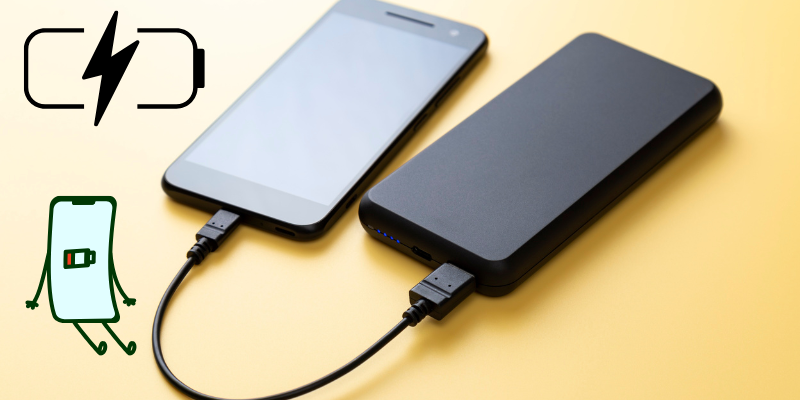
In this guide, we’ll explain why phone charging slow after update happens, the most common reasons behind it, and proven solutions that actually work. We’ll also show how this issue connects with why phone battery drains, so you can fix both problems together.
Why Phone Charging Slow After Update Is So Common
Software updates don’t just change how your phone looks. They also modify background processes, battery management systems, and app behavior. Sometimes, these changes cause temporary or ongoing charging issues.
After an update, your phone may:
- Reindex files and apps
- Run background optimization processes
- Change power management rules
- Increase background app activity
All of this can make your phone charging slow, especially during the first few days.
Top Reasons Phone Charging Slow After Update
1. Background Optimization Consumes Power
After a system update, your phone works harder than usual. It may optimize apps, sync data, and rebuild caches in the background.
This means:
- Power is being used while charging
- Charging speed appears slower
- Phone may heat up slightly
This is normal for 24–72 hours but should improve.
2. Battery Calibration Gets Disrupted
Updates can confuse battery calibration. Your phone may think it’s charging slowly even when it isn’t, or it may stop charging earlier than expected.
Signs include:
- Stuck charging percentage
- Slow charging near 80–90%
- Sudden drops after unplugging
3. Power-Hungry Apps After Update
Some apps don’t behave well with new system versions. They may run constantly in the background, using power while your phone is plugged in.
This is closely related to why phone battery drains, even when the phone is not heavily used.
4. Charging Settings Changed Automatically
Some updates enable features like:
- Optimized charging
- Battery protection limits
- Adaptive charging
These features intentionally slow charging to protect battery health, especially overnight.
5. Cache Files Causing System Conflicts
Old cache files can conflict with new software, causing charging bugs and performance issues.
This is very common on Android devices after major updates.
6. Cable or Charger Issues Revealed After Update
Updates don’t damage chargers, but they can make your phone more sensitive to low-quality cables or adapters.
If your phone charging slow only after update, it may be because:
- Cable is worn
- Adapter doesn’t support fast charging
- Charging port has dust
7. Heat Management Limits Charging Speed
New updates often improve heat protection. If your phone detects heat while charging, it automatically slows down charging to prevent damage.
This happens more often when:
- Phone is used while charging
- Fast charging is enabled
- Environment is warm
How to Fix Phone Charging Slow After Update (Step-by-Step)
1. Restart Your Phone
This sounds simple, but restarting clears temporary system processes caused by updates.
Many users see immediate improvement after a reboot.
2. Give the Update Time to Settle
If the update was installed recently, wait 1–3 days. Background optimization usually finishes on its own.
Avoid heavy use during this period.
3. Check Battery Usage Stats
Go to battery settings and look for apps draining power while charging.
If one app stands out:
- Restrict background activity
- Update the app
- Remove it if necessary
This also helps fix why phone battery drains faster than usual.
4. Clear Cache Partition (Android)
Clearing cache does not delete data but removes outdated system files.
This often resolves:
- Slow phone charging problem
- Heating issues
- Battery drain after update
5. Disable Optimized or Adaptive Charging (If Needed)
If you need faster charging temporarily, turn off:
- Optimized charging
- Battery protection limits
Remember to re-enable later to protect battery health.
6. Use Original or Certified Charger
Fast charging only works with compatible cables and adapters.
Check:
- Charger wattage
- Cable condition
- Charging port cleanliness
Avoid cheap or damaged cables.
7. Update Apps and System Patches
Manufacturers often release small fixes after major updates. Install any pending patches.
App updates can also fix compatibility issues causing phone charging slow after update.
8. Avoid Using Phone While Charging
Streaming videos, gaming, or hotspot usage slows charging significantly.
For fastest charging:
- Turn off screen
- Enable airplane mode
- Avoid heavy apps
9. Reset Battery Calibration
To recalibrate:
- Use phone until battery drops below 10%
- Turn it off
- Charge to 100% without interruption
This helps fix inaccurate charging behavior.
Android vs iPhone: Is One More Affected?
Android
Android devices show this issue more often due to:
- Device customization
- Different battery management systems
- Manufacturer-specific updates
iPhone
iPhones also experience slow charging after updates, especially with:
- Optimized Battery Charging
- iOS background processes
Both platforms can be fixed using similar steps.
When Should You Worry?
You should investigate further if:
- Phone charging slow continues for weeks
- Battery drains unusually fast
- Phone overheats regularly
- Charging percentage jumps or freezes
In rare cases, a faulty battery may be the real cause.
Connection Between Slow Charging and Battery Drain
Slow charging and battery drain often occur together. When apps or system processes consume power while charging, the phone charges slowly and drains faster when unplugged.
Fixing charging issues often improves overall battery life as well.
Final Thoughts
Experiencing phone charging slow after update is common, but it’s rarely permanent. Most issues are caused by background processes, settings changes, or app behavior after updates.
By understanding the causes and applying the right fixes, you can restore normal charging speed and also address why phone battery drains faster than expected.
Slow charging doesn’t mean your phone is broken. It usually means your system just needs a little attention.
After updates, phones run background optimization, app syncing, and new battery management features, which can slow charging temporarily.
Usually 1–3 days. If it continues longer, app conflicts, cache issues, or settings may be responsible.
Yes. Background processes and poorly optimized apps can cause both slow charging and faster battery drain.
Yes, especially on Android. Clearing cache removes outdated system files that interfere with charging and battery performance.
Heat protection, adaptive charging, background apps, or incompatible cables can limit charging speed.
Only if slow charging continues after all fixes and battery health is significantly degraded.





- Be Respectful
- Stay Relevant
- Stay Positive
- True Feedback
- Encourage Discussion
- Avoid Spamming
- No Fake News
- Don't Copy-Paste
- No Personal Attacks
- Be Respectful
- Stay Relevant
- Stay Positive
- True Feedback
- Encourage Discussion
- Avoid Spamming
- No Fake News
- Don't Copy-Paste
- No Personal Attacks
